

Presentation Console is a Chrome extension that keeps a live, on-screen tracker visible while you're giving a sales demo or running a meeting, so the room stays anchored to what actually matters instead of drifting into a generic feature tour or an agenda nobody follows.
It has two independent choices you make for every presentation: what you're tracking (Pain Points or Agenda) and where it shows up (Side Panel or Modal). Mix and match freely, every presentation can use a different combination.
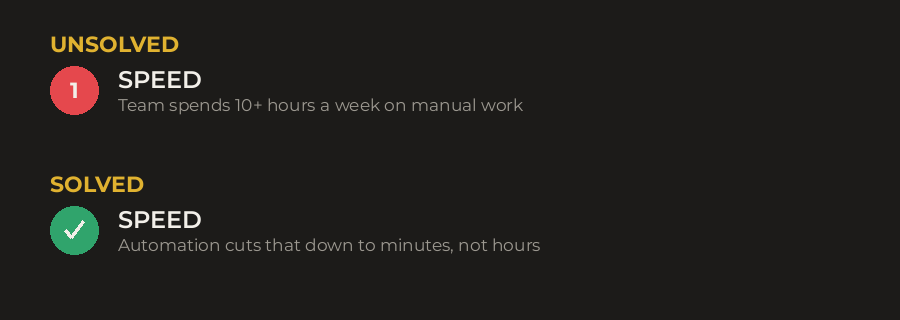
Pain Points is built for live sales demos. Set up the specific problems that came up during discovery, then mark each one solved, live, as you address it in the demo. The visual language reflects that: unsolved items show as a filled red circle with a number, and solved items flip to a filled green circle with a checkmark. That color signal is deliberate, it mirrors "problem" and "resolved."
Agenda is built for any structured meeting, training session, or webinar, no sales framing at all. Incomplete items show as a plain number, no circle. Completed items become a filled circle in whatever color you've set as your Body text color. Neutral, not red or green, since an agenda item isn't a "problem" the way a pain point is.
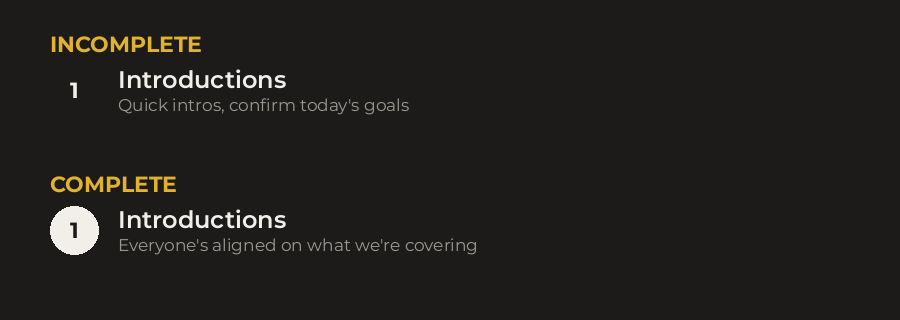
In both modes, the item's title and description text never change color and never get a strikethrough when you mark something solved or complete. All of the status signal lives in the glyph. This is intentional: it keeps the room's attention on the glyph, not on distracting text effects.
Each presentation has its own Placement setting, chosen when you set it up.
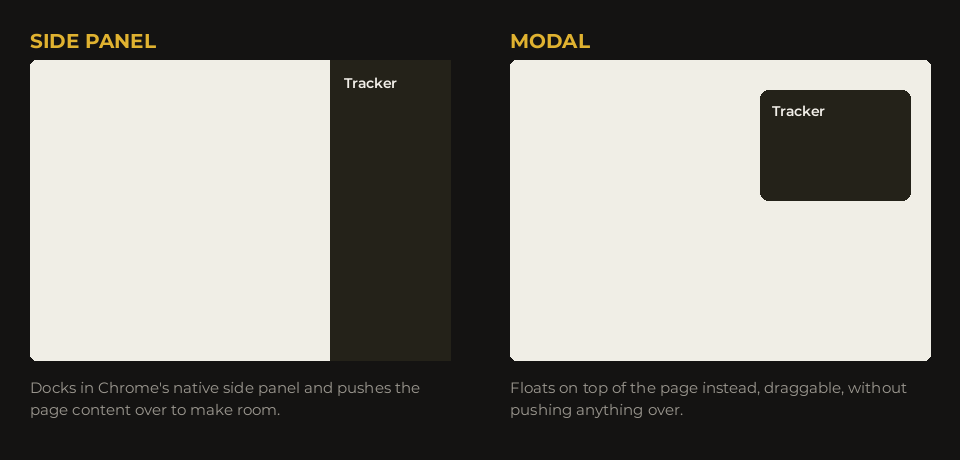
Side Panel opens in Chrome's native side panel, which pushes the page content over to make room rather than covering anything. It's the better choice when you want the tracker to feel like a permanent part of your browser window throughout the demo.
One current quirk worth knowing: launching a presentation in Side Panel mode will close the main Presentation Console view you were just looking at. This is expected behavior, not a bug, the side panel is replacing what's shown there. To get back to Home or the Editor, reopen the extension from the toolbar icon.
Modal shows as a small, draggable floating window on top of the page instead of pushing anything over. Drag it by its header to reposition it, click the chevron to collapse it out of the way without closing it, or click the X to close it entirely. Modal is the better choice when you don't want to disturb the page layout at all, useful on sites where side panel's push-over behavior would cramp what you're presenting.
From Home, click + New Presentation. A new presentation always starts genuinely empty, no pre-filled sample content, seeded only with your current Default Theme's branding (logo, colors).
Give it a Title (this is the header text shown in the live widget, not the same as the presentation's internal name used to identify it on your Home screen), choose Pain Points or Agenda, and choose Side Panel or Modal. All of these can be changed later from the Editor.
In the Editor, click + Add Pain Point (or + Add topic in Agenda mode) to add a new blank item. Each item has three fields:
- Title: the short label shown in the tracker (e.g., "SPEED," or "Introductions")
- Subtext: shown while the item is unsolved/incomplete
- Solved Subtext: shown once you've marked it solved/complete
Reorder items using the up and down arrows on each card. Delete an item with the X.
Load examples
If your list is empty, a small Load examples link near the Add button will seed it with sample content matching your current tracker type, useful for exploring what a filled-out tracker looks like before writing your own. If you already have content, clicking it will ask you to confirm before replacing anything, so you can't lose real work by accident.
During a live presentation, click directly on an item's glyph (the circle or number) to toggle it between solved/unsolved (Pain Points) or complete/incomplete (Agenda).
Keyboard shortcuts: Ctrl+Shift+1 through Ctrl+Shift+9 toggle the corresponding numbered item, in either direction, without needing your mouse. Useful for marking something solved mid-sentence without breaking eye contact with the room.
Each presentation has its own Branding section in the Editor, covering:
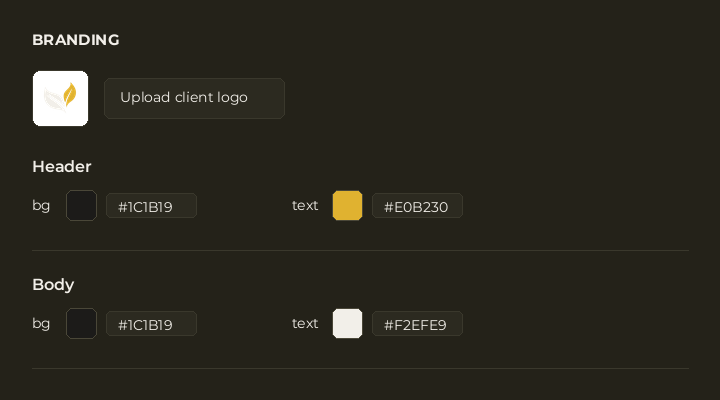
- Logo: upload a client's logo or your own
- Logo Background: Transparent, or Custom (pick a solid background color behind the logo)
- Header: the background and text color of the top bar (where your logo and title show)
- Body: the background and text color of the tracker's content area (where your items live)
Every field is editable per presentation, so you can match a client's look exactly.
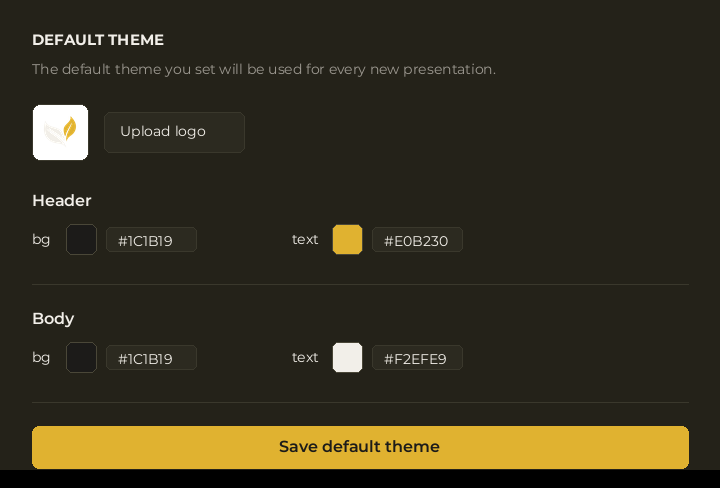
Default Theme is a separate, standing set of branding (Logo, Logo Background, Header, Body) that every new presentation is seeded with automatically. It's not tied to any specific presentation, editing it doesn't retroactively change presentations you've already created.
Find it on Home under Default Theme. Set your own there, useful if you're customizing for one specific client's colors across many presentations, or just want your own brand as the starting point instead of ours.
Clicking the star on a saved presentation does two things, and only two things:
- Pins it to the top of your Home list, regardless of sort order
- Makes it the one-click target when you use the extension's quick-launch button from the browser toolbar popup
It has no effect on branding or any other setting, it's purely about findability and quick access.
On Home, use the sort dropdown to order your saved presentations by Newest first, Oldest first, A → Z, or Z → A. Whichever presentation is starred stays pinned to the top regardless of which sort you choose.
- From Home, click Launch on any saved presentation
- From the browser toolbar popup, click the extension icon for quick actions: open the full console, start a new presentation, or one-click launch your starred presentation
- Right-click on any page, and use the Launch submenu to pick from your 5 most recent presentations without opening the extension at all
A few sites block extensions from displaying content on the page, and Modal placement depends on being able to do exactly that.
The Chrome Web Store itself is the one confirmed case. This isn't a bug, and it isn't specific to Presentation Console. Chrome deliberately blocks every extension from running on its own store pages, as a security measure. If you're trying to launch a Modal while on the Chrome Web Store, it won't work, and no extension update can change that.
Ad blockers and privacy extensions are the other common cause. Some are aggressive enough to interfere with content other extensions try to display on a page. If Modal isn't appearing on a normal website, try temporarily disabling other extensions to see if one of them is the cause.
If neither of those explains it: try Side Panel placement instead for that presentation. It doesn't depend on injecting into the page the way Modal does, so it isn't affected by either of the issues above.
Still have a question?
Reach out at hello@aspenroots.io.
The console
- New Console Themes. Pick how the console itself looks: Aspen, London, Oslo, Seattle, or Dublin. You'll find the picker in Settings, and the extension icon has a fresh look to match.
- Filter by presentation type. Narrow your list to just Pain Points or just Agenda presentations right from Home, alongside sorting.
- Modal size options. Choose Compact, Standard, or Wide for your Modal tracker, so it fits comfortably whether you're working with one short line per item or longer subtext.
Brand kit and detection
- New tool: Get Brand Kit. Pull a client's logo (logo.dev), colors, and fonts (Google Fonts) straight from their website and download them as a ready-to-use zip file.
- Brand detection on your presentations. Detect a site's colors and logo and apply them directly to a presentation, or keep setting the look and feel yourself, whichever you prefer.
- Swap in any color we found. Detect Brand shows you every other brand color it spotted on the page, not just the ones it auto-applied, so you can swap one in if the pick isn't quite right.
- Apply detected branding to more than one presentation at once. Rebranding several presentations for the same client? Select them all and apply the detected look in one step.
- Default Theme can detect a brand too. Want new presentations to start already branded? Pull the starting look for your Default Theme straight from a live site instead of setting it by hand.
For everyone
- Free for everyone now. The Free vs Pro split is gone, every feature is available to you with no upgrade needed.
- Safer delete confirmation. Deleting a saved presentation now shows a clear "Delete this presentation?" prompt with Cancel and Delete buttons, replacing the old color-change confirmation that could revert on its own if you hesitated.
- In-context notices for Side Panel and Modal. A quick note now sits near the Launch button letting you know what to expect, that Side Panel will close the current console view, or that Modal might not display on certain pages.
- Modal launch alerts. If a Modal presentation can't display, most commonly on Chrome's own store pages or when an ad blocker interferes, you'll now get a notification explaining why, instead of it silently failing.
- Built-in help. Small help icons now sit next to Tracker Type, Placement, and the Pain Points/Agenda section, linking straight to the relevant part of this support page. A Documentation link was also added to the toolbar popup, and a Support link now lives in the console's footer.
- Longer Load Examples confirmation window, giving you more time to reconsider before sample content replaces what you've written.
- Two tracker types. Pain Points, built for live sales demos, lets you track discovery pain points and mark each one solved as you address it. Agenda, built for any structured meeting, training session, or webinar, works the same way for topics instead of pain points.
- Two ways to display it. Side Panel docks in Chrome's native side panel, pushing the page over. Modal floats on top of the page instead, without disturbing the layout.
- Full branding control. Set your own logo, header colors, and body colors per presentation, or use Default Theme to set a standing default that seeds every new one you create.
- Quick actions. Star a presentation to pin it to the top of your list and set it as your one-click launch target. Sort your saved presentations by name or date. Launch instantly from the browser toolbar or a right-click menu, no need to open the full console first.
- Keyboard shortcuts. Mark any of the first nine items solved or complete using Ctrl+Shift+1 through Ctrl+Shift+9, without touching your mouse mid-presentation.
- Everything included. Unlimited saved presentations, full branding control, and your own Default Theme, for everyone.